How Vulaway works

See how owners and dispatchers use route planning, driver performance and financial records to make better decisions. Explore the delivery workflow, fleet tools, bulk haulage and optional port services below.

Start your 90-day fleet trial

A delivery from start to finish

Create the job, assign a truck and driver, follow the trip and collect proof of delivery (POD).

  1. Step 1

    Plan

    Enter the customer, route and timing for a direct, multi-stop, bulk or port delivery.

  2. Step 2

    Assign

    Choose the truck and driver from your fleet. Required dangerous-goods credentials are checked before assignment.

  3. Step 3

    Track

    Follow the trip using your connected tracker or the driver's phone. Send the customer a link to check delivery progress.

  4. Step 4

    Proof of delivery

    Collect the delivery photo and recipient signature. Check the proof of delivery before preparing the invoice.

See the screens

Fleet

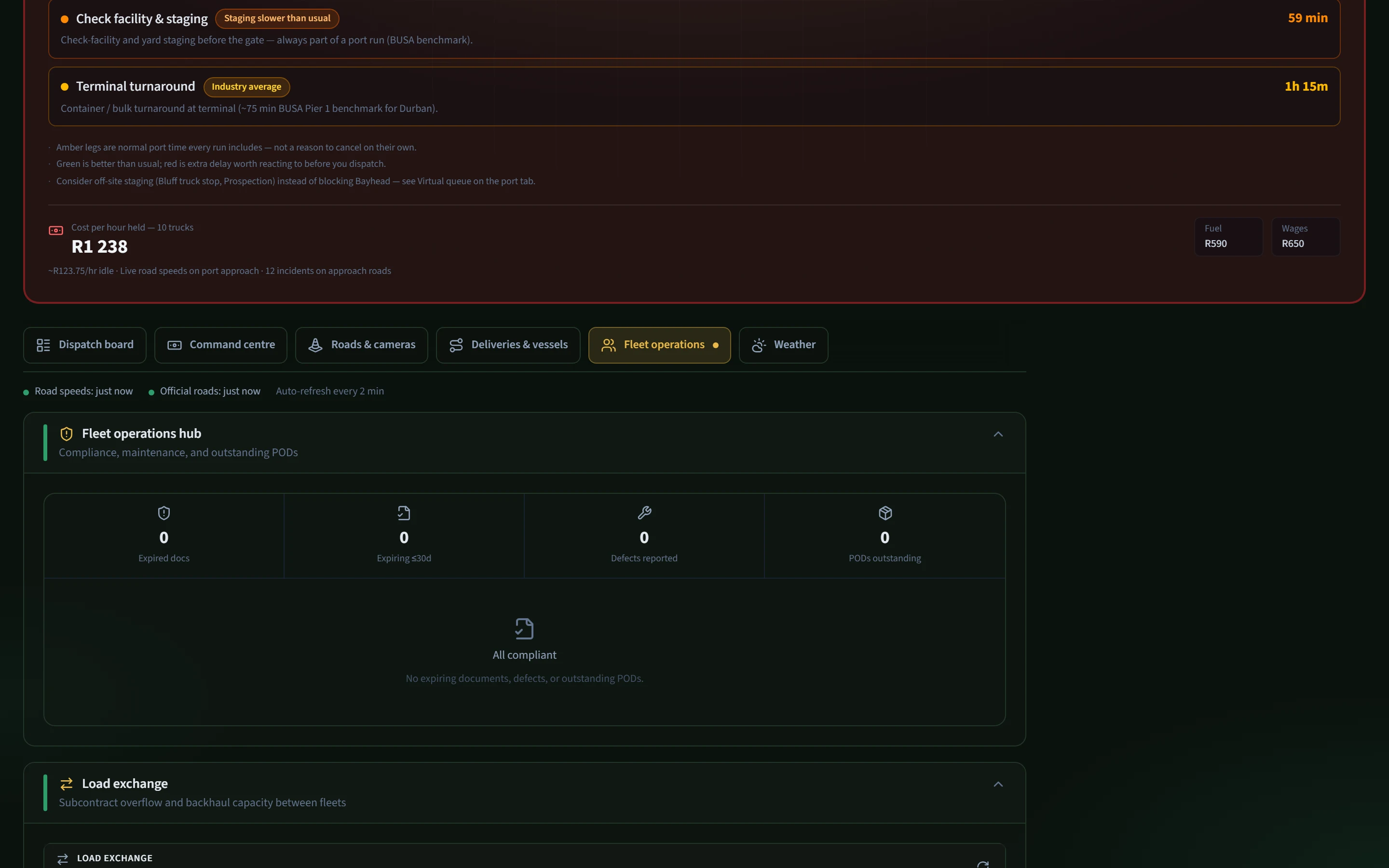
Documents, defects and outstanding PODs

Review expired documents, approaching expiry dates, vehicle defects and outstanding PODs.

On this screen

  • Expired documents and upcoming renewals
  • Vehicle defects and missing proof of delivery
  • Loads available for subcontracting and return trips
Fleet operations hub compliance and POD summary
Swipe sideways to inspect the enlarged view. Documents, defects and outstanding PODs. Example screen with demonstration data. Open full screenshot

Port tools

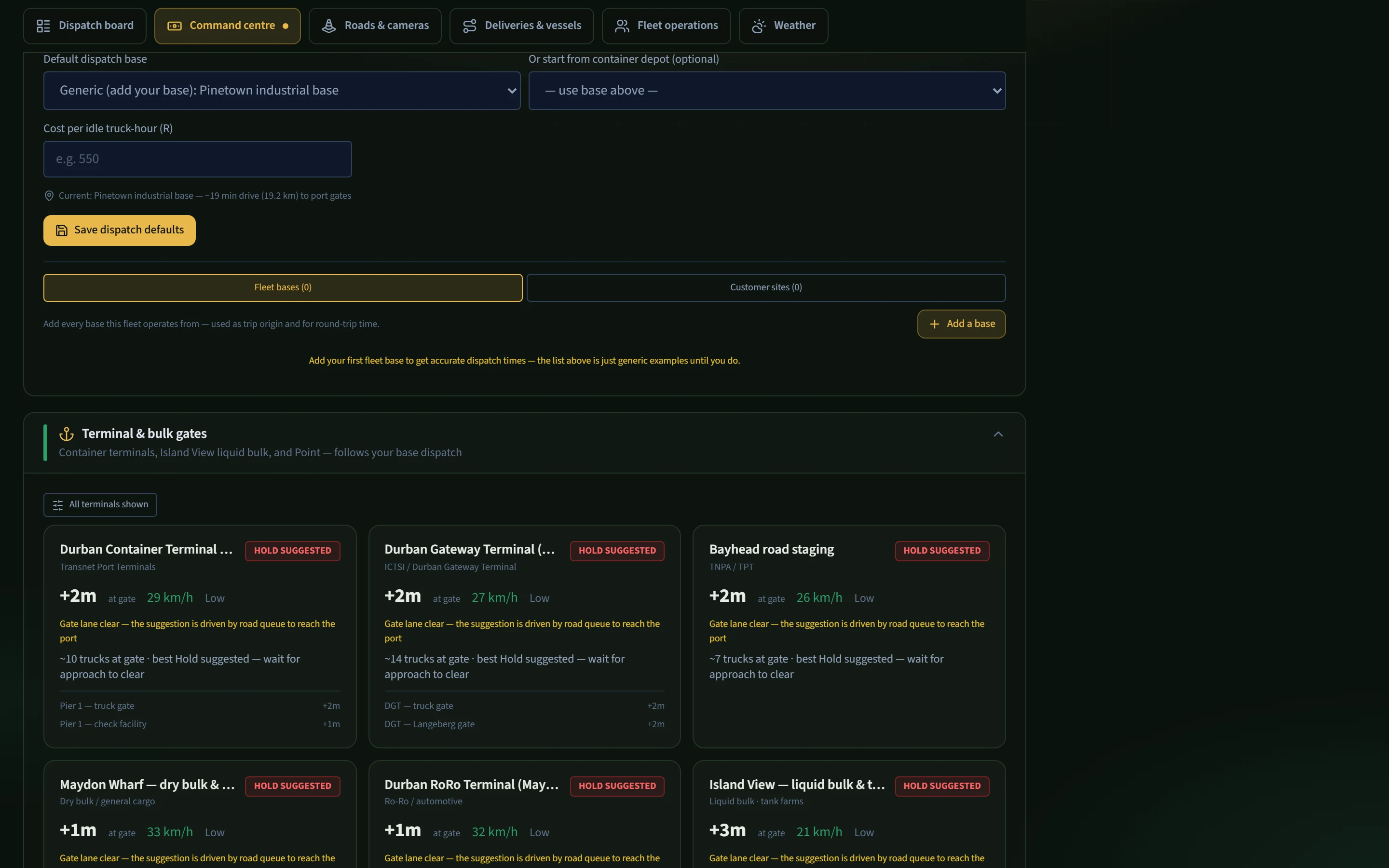
Gate conditions before dispatch

Check reported gate delays and approach-road conditions before sending a truck. Go, wait and hold suggestions help your dispatcher decide when to leave.

On this screen

  • HOLD SUGGESTED / wait / go on each gate card
  • Gate delay, approach speed, and trucks at gate
  • Cost per hour held — labelled your rate or typical rates
Port tools with hold suggested on Durban terminal gates
Swipe sideways to inspect the enlarged view. Gate conditions before dispatch. Example screen with demonstration data. Open full screenshot

Deliveries & vessels

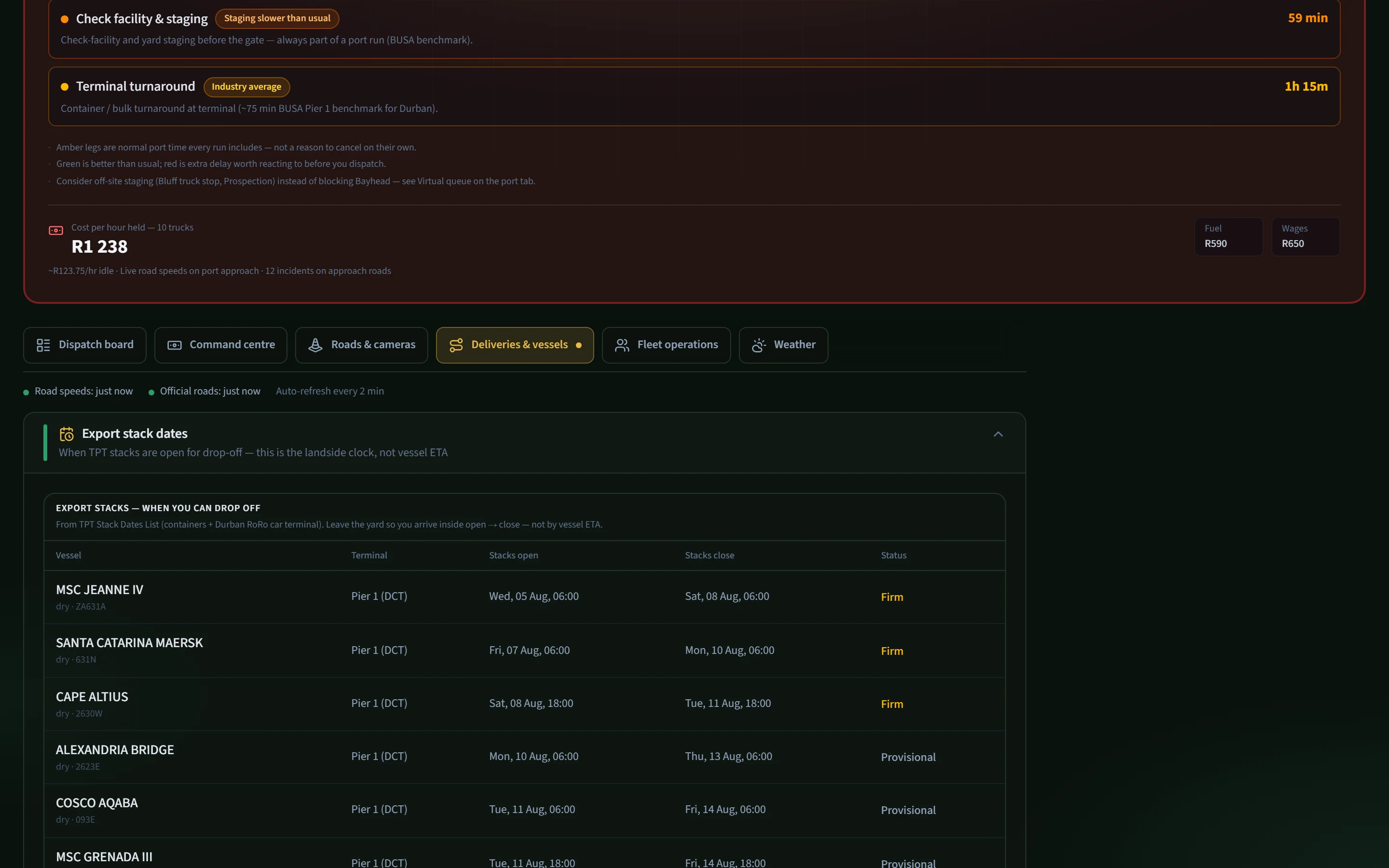
Export drop-off windows

Published TPT stack windows show when export drop-off opens and closes, so the yard run can be planned against the terminal's cut-off. Confirm the latest official notice before dispatch.

On this screen

  • Vessel and terminal names
  • Stack open / close times and Open / Closed status
  • Last published list, clearly dated when no newer list is available
Export stack dates list for Durban RoRo car terminal
Swipe sideways to inspect the enlarged view. Export drop-off windows. Example screen with demonstration data. Open full screenshot

Roads & cameras

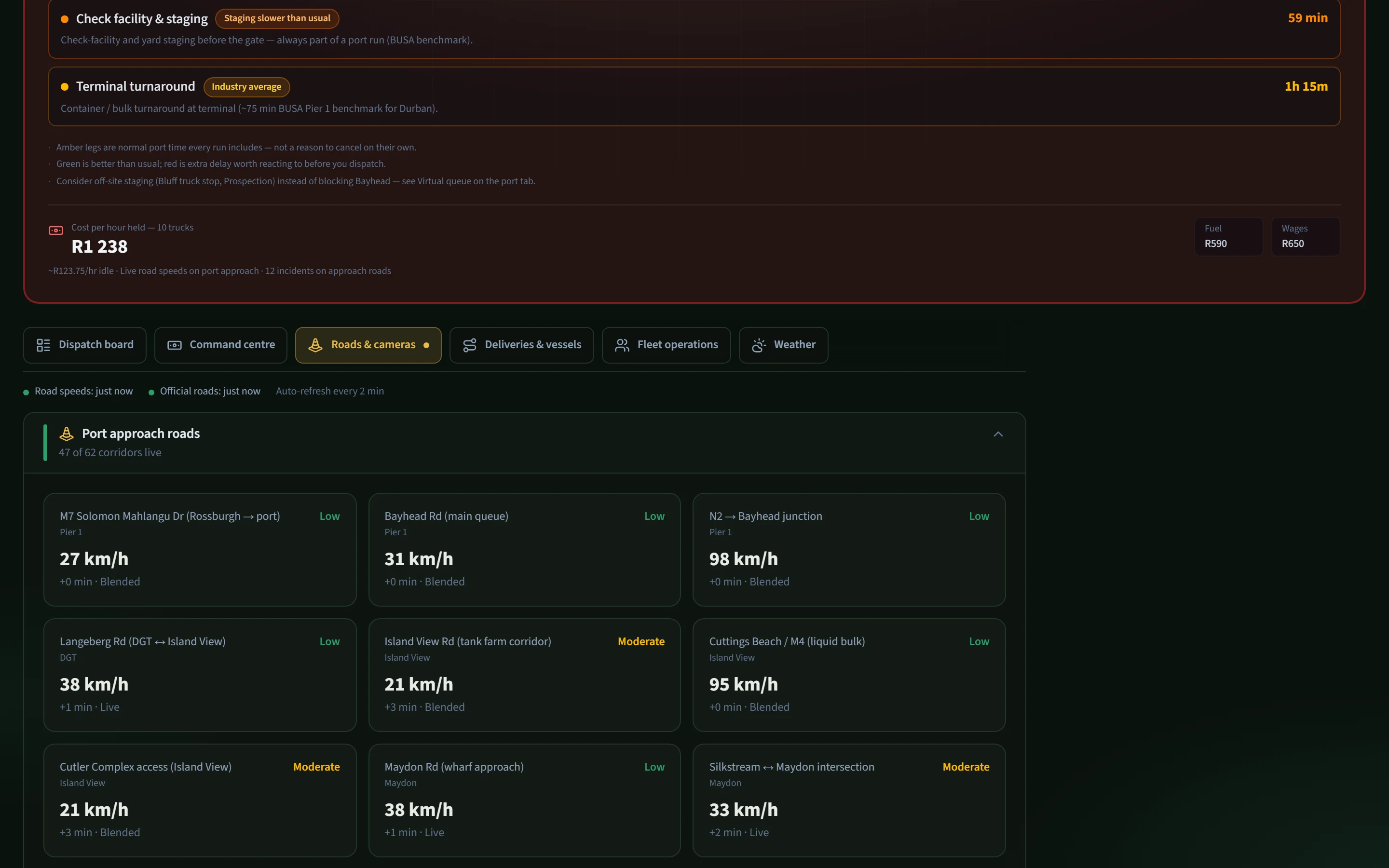
Port approach speeds and delays

Bayhead, the M7, the N2 junction and other approach legs show current or estimated speed and delay. The desk can see which part of the approach is slow before the truck joins the queue.

On this screen

  • Per-corridor speed (km/h) and delay
  • Low / moderate labels on each approach
  • Time of the latest road-speed update
Port approach roads with live speeds into Durban
Swipe sideways to inspect the enlarged view. Port approach speeds and delays. Example screen with demonstration data. Open full screenshot

Your workspace

Tools are grouped by task, with an order suited to owners and dispatchers.

Today

Prioritise today's jobs, late deliveries, missing PODs and operational exceptions. See working and available trucks alongside available location updates, then open the relevant job to act.

Owner vs dispatcher

Owners can review financial performance and outstanding work. Dispatchers see planning and active deliveries first, with access to records governed by their role.

Main work setting

Choose general freight, port, bulk or mixed work in Preferences.

Simple / Technical and Roomy / Tight

Choose how much detail to show and how closely to space the rows. Access to fleet records still depends on your role.

Deliveries

Plan jobs and record proof of delivery.

Delivery planner with trip timeline

Plan collection and delivery locations, scheduled times and stops for customer or port jobs.

Route optimiser and round-trip fuel

Compare delivery stop orders and estimated costs, including the return journey. Fuel estimates use vehicle class, cargo weight, distance and road slope, with loaded outbound and empty-return litres shown separately. Assumptions and missing elevation coverage remain visible.

Proof of delivery on the phone

Capture a photo and signature, then have a manager verify the POD. Verification calculates the charge or flags a billing problem for review.

Customer tracking link

Send your customer a link to follow progress. They do not need a login or an app. No driver name, phone, or plate. Not offered on bulk cycles in this release.

Fleet map

View truck positions from connected GPS sources.

Bulk cycles

Assign repeated quarry or mine loads for the day.

Allocate for the operating dayNew

Assign the truck, driver, loading site and delivery site. Follow completed loads and accepted tonnes throughout the day.

Weighbridge tickets

Photograph the ticket and check its net mass. A manager reviews the ticket before it is marked ready for invoicing.

Works when the signal drops

Both the Android and web driver apps save bulk updates and weighbridge captures on the phone, then send them when the connection returns.

Note: Bulk rate cards and bulk invoices are not yet available. We do not claim RTMS or dangerous-goods compliance on bulk work.

Port tools

What you need before you send a truck to the terminal.

Conditions at major South African ports

Port conditions from available feeds. Coverage varies by port, with the most detail currently available for Durban.

Road traffic and incidents

Road-authority feeds, cameras and connected trucks contribute to corridor conditions.

Traffic cameras

View approach-road images. Camera checks support warnings from other sources; they do not create alerts on their own.

Ships in port

Vessels berthed, at anchorage, or approaching — useful when gate pressure is about to rise.

Weather and sea conditions

Wind and swell affecting cranes and marine operations.

Weekly patterns

Usual busy and quiet periods per port, so you can plan around known rush times as well as today's picture.

Navis booking windows

Ranked TPT / Navis booking times from port history, your yard drive, approach roads, and the return leg — before you book a slot that will not work. You still book in Navis yourself.

Rail enquiry

When the road into Durban is bad enough, Vulaway flags that a rail enquiry may be worth a phone call. There is no live Transnet freight booking inside the product; that stays manual.

Day-to-day fleet work

Trucks, trailers, drivers, papers, and invoices.

Register trucks, trailers, and drivers

Add your fleet yourself. Each driver gets a username and password — not the fleet access code.

Driver performance and fuel averages

Review punctuality, paperwork, dispatch responses and credential status. Fuel averages show measured L/km and L/100 km for completed trips with consumption records, alongside sample counts and a separate planned average. Purchase litres are not measured consumption, and fuel does not change the performance score.

Inspections, services, tyres and defects

Filter pre-trip inspections, review reported defects and record maintenance costs. Keep vehicle and driver documents together and follow up approaching expiry dates.

Compliance records for review

Export supported overload, driver-hours, credential and maintenance records for a period. The audit pack is not a compliance certificate and does not include pre-trip inspections. Diesel logbook exports organise recorded evidence for review.

Real yard addresses

Save the yards you actually use. Drive times to port and back use those addresses, not a straight line on a map.

Driver location from a phone

Drivers can share trip location through the web or Android driver app. The Android app shows a notification while tracking. Connected Cartrack, Geotab or Ctrack data takes priority over phone location.

Gate check-ins

See when a driver arrives, joins the queue, and clears the gate.

Breakdown and emergency alert

Drivers can send an emergency or breakdown alert with their last known location. Sending requires a data connection.

Dangerous-goods driver credentials

Hazchem and PrDP-D credentials are checked when assigning a driver to a job with a hazard class or UN number. Mass, hours and COF checks do not yet block delivery planning.

Terminal slot tracker

Record confirmed TPT slots and the time to leave your yard.

Invoices from verified PODs

Review proof of delivery to calculate the trip charge from your rate card. Prepare the invoice under Commercial, then print it, export it or share it using your own email app.
Owner overview and trip profitability

Use financial and operational records to decide where to focus.

Owner's financial overview

Review invoiced revenue, direct trip costs, outstanding invoices, unbilled PODs and pallet liability. Financial summaries require owner access. Missing trip costs are flagged and incomplete margins are withheld.

Performance by truck, driver and month

Compare trips, distance, revenue, fuel, wages, wear costs and cost per kilometre. Review profit and margin where records are complete, and filter trip profitability to the work you need to assess.

Delivery rate cards, invoices and accounting exports

Manage delivery rates, review charges from verified PODs and prepare invoices. Export issued tax invoices for a date range in supported accounting formats, with VAT per line. Bulk rate cards and invoices are not yet available.

Fuel slip as a purchase record

Photograph a fuel slip and check the litres and price read from it. This records a purchase; it does not measure fuel consumption or identify theft.

Route-advice value

Compare available advice, selected plans and advice followed. Missing records are flagged. Results are estimates, not recorded cash or payroll savings.

Cost per trip and cost per km

Review estimated and recorded costs for each truck and trip.

Verified-trip certificate

Tamper-evident record after POD is verified.

Estimated CO₂ emissions

Review estimated emissions, with measured inputs and assumptions labelled.

Utilisation check

Which declared trucks are running jobs and which are standing.

Returns and extra loads

Keep track of what needs to come back and look for work for spare capacity.

Returns and recovery

Track pallet balances, waste custody, approved retail returns and empty-container turn-ins, with supporting records for follow-up.

Load exchange

Post a load you cannot cover, or pick up work when a truck is standing.

Note: This is a notice board, not a payment system. Vulaway does not hold money between fleets.

For shippers

Follow deliveries across the carriers you contract.

Contracted carriers

Track freight across your contracted trucking companies.

Batch and consignment tracking

From origin through to terminal across carriers.

Custody and claims flags

Problems raised early with photo evidence.

Self-serve sign-up and carrier invites

Shippers register and invite fleets onto their carrier list.

For port and terminal operators

Review activity at your port or terminal gate.

Port-wide activity view

Totals across fleets at your gate — not another operator's private truck list.

Go, wait or hold for port deliveries

Port tools suggest whether to go, wait or hold based on available gate and road information. Your team decides when to dispatch.

Good to go

Conditions look workable for a port run right now.

Suggest waiting

Queue or corridor risk is building. A better window may be close.

Hold suggested

Strong case to delay dispatch. Still only advice — you decide.

How dispatch advice is calculated

Sources and freshness

Check when road and port information was last updated. Missing or older information is labelled so your team can judge whether to rely on it.

Telematics when you have it

Connect Cartrack, Geotab or Ctrack if you already use them. Connected tracker data takes priority over phone location during a trip.

Dispatch advice

Go, wait and hold suggestions help with port dispatch. Your dispatcher and driver make the final decision.

Register your fleet

Create your account, add your trucks and drivers, then plan your first delivery. Your fleet trial runs for 90 days from registration.

No card. 90 days, up to 50 trucks. Then R500 per truck a month — cancel any time.

Start your 90-day fleet trial

Talk to us about your fleet

How Vulaway works — Product tour